
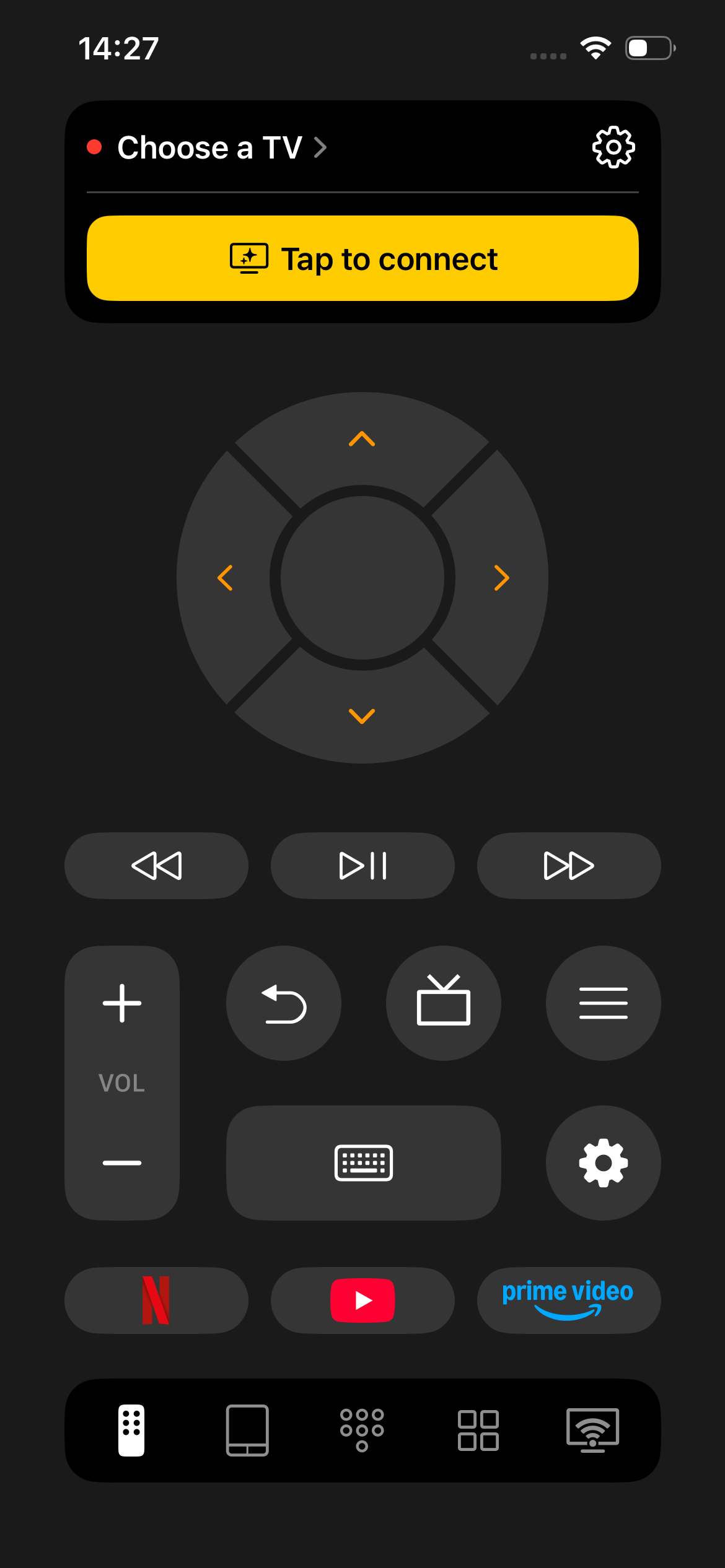
Launch the app and tap the "Tap to Connect" button.
In the list that appears, select your device.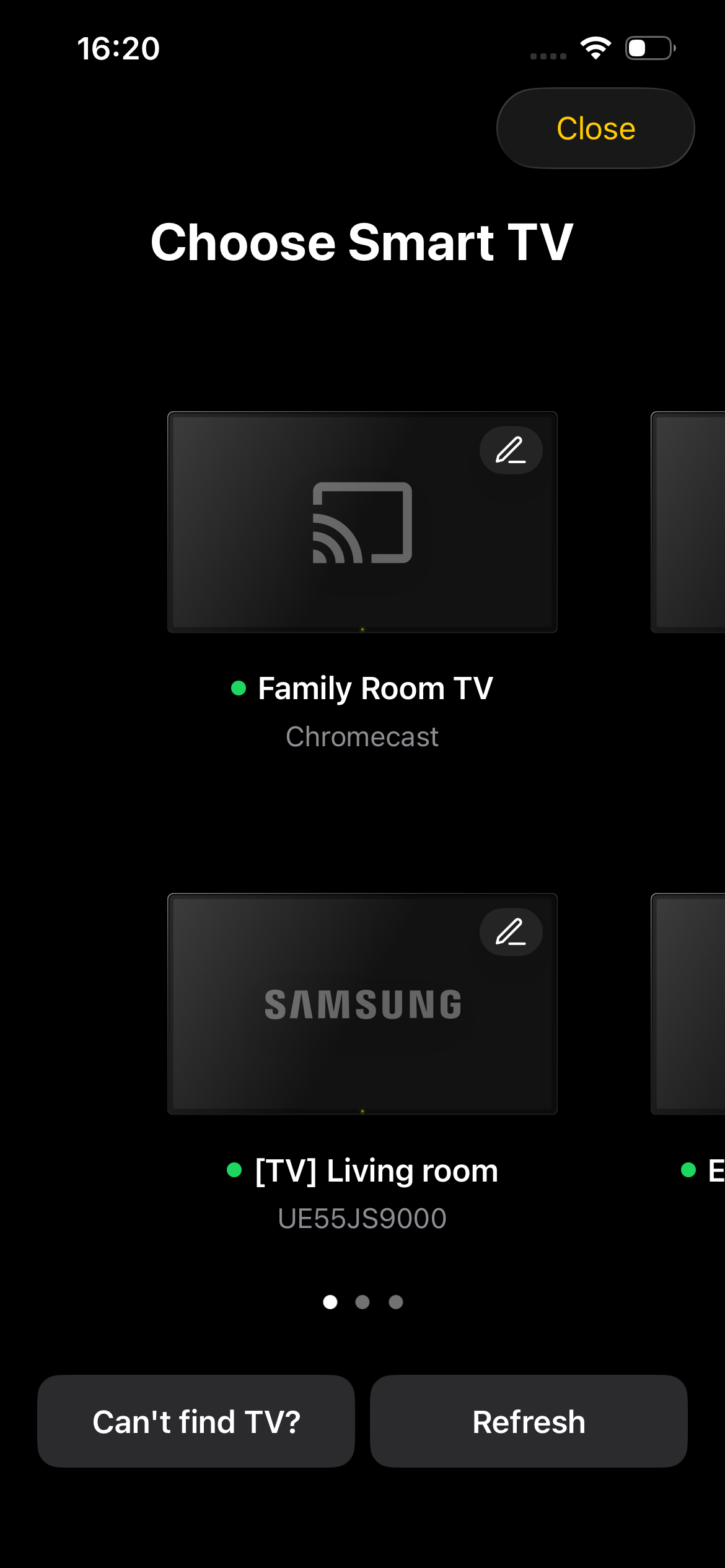
When you tap the "Edit" button, you can:
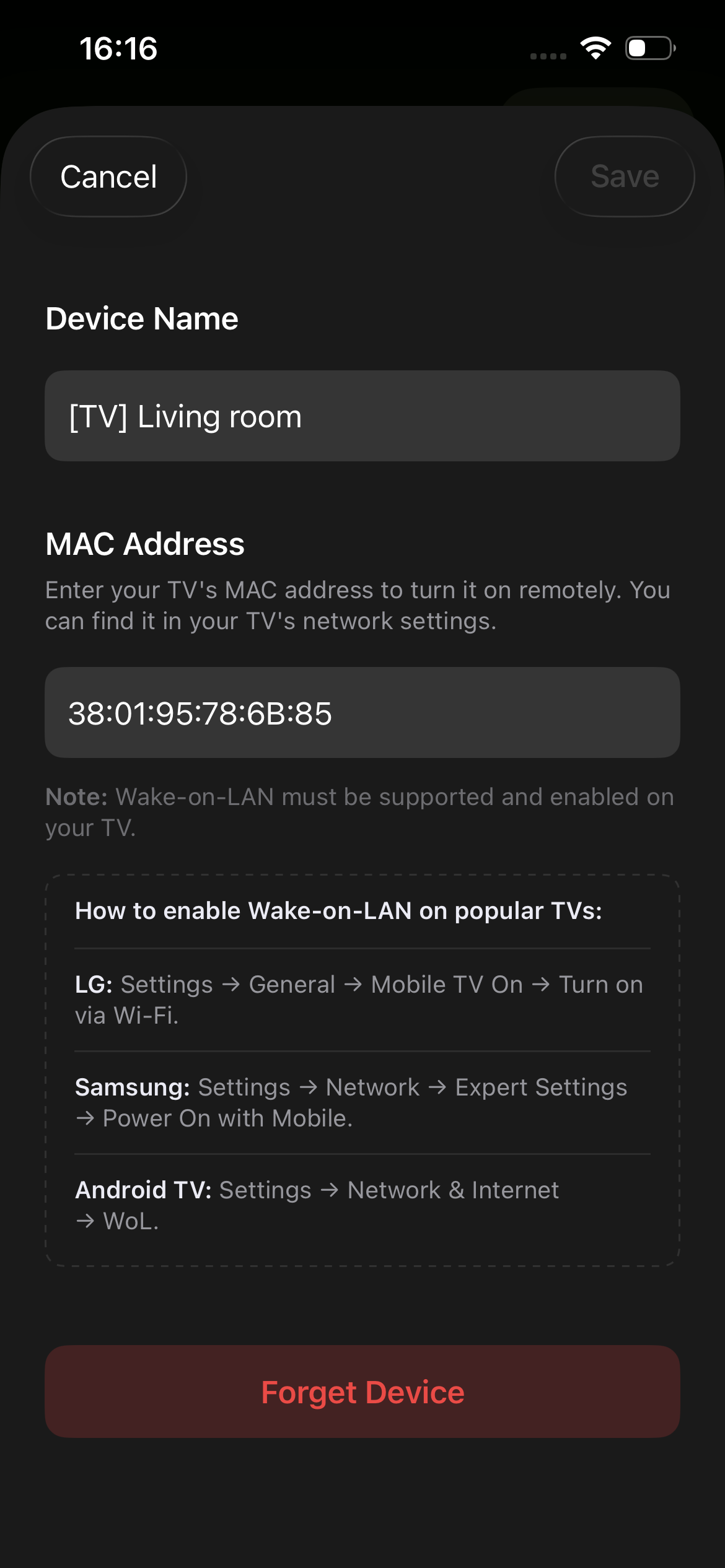
- Change the device name displayed in TVRem.
- Enter the device's MAC address to enable turning on the device when it is powered off. For more information, check this article.
- Forget the device.
When connecting, your TV may ask for a pairing code. In this case, it will appear on your TV screen.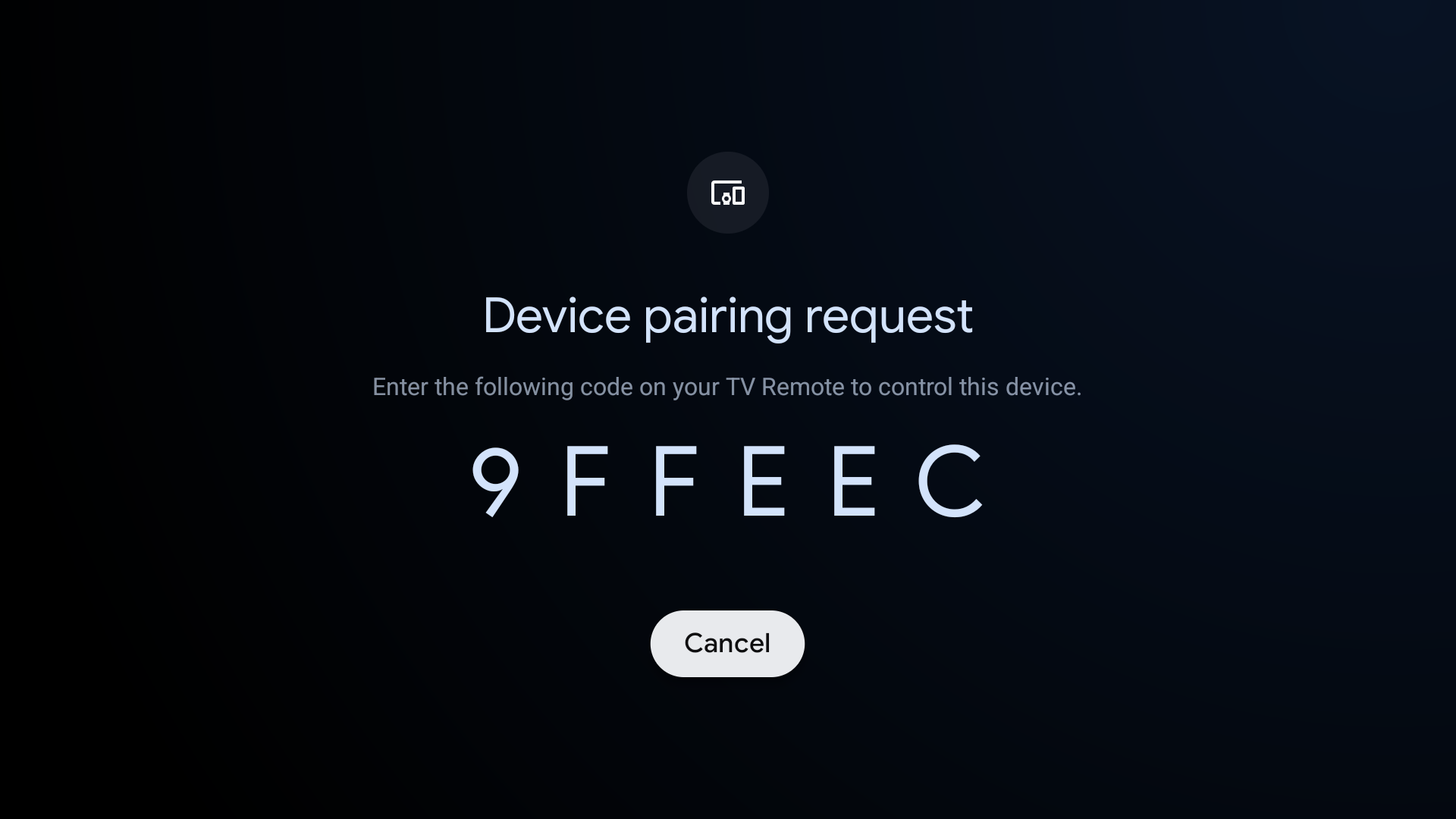 At the same time, a window will appear on your iPhone where you need to enter the pairing code shown on your TV.
 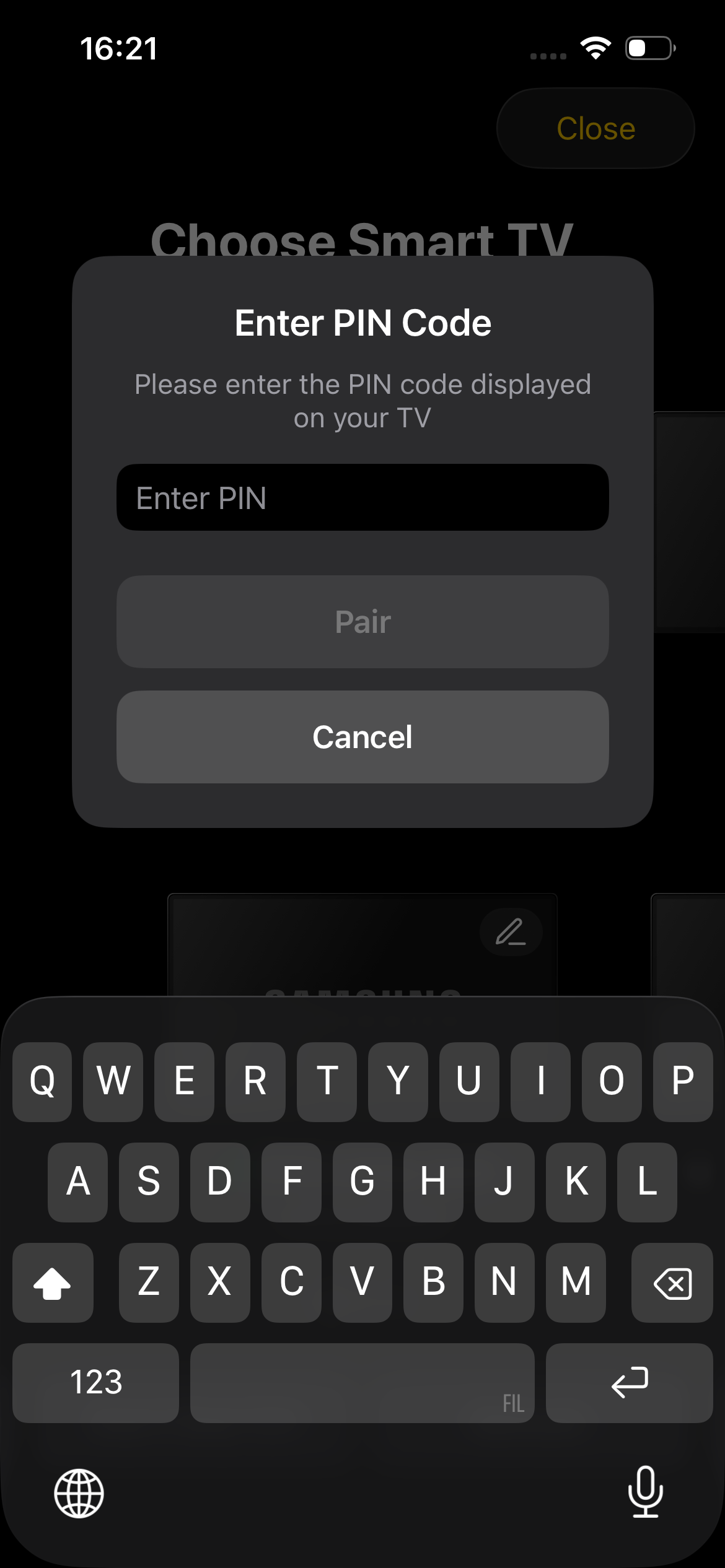 Enter the code and tap the "Pair" button.
| Note: When connecting to some TVs for the first time, you may need to allow the connection manually. You can find the instructions and explanations here - for Roku and for Samsung TV. |
The next time when the app launches, it will automatically connect to the last selected device. This can be disabled in the Settings > Reconnect to Last Device.
You can also disconnect from the connected TV and forget all previously paired devices in the Settings > Forget Paired Devices.
If you can’t find your device on the list, try tapping the “Refresh” button. If the device still does not appear, go to “Why can't I find and connect to my device?” and follow the steps indicated in the article.
You can easily change the selected device after establishing a connection.
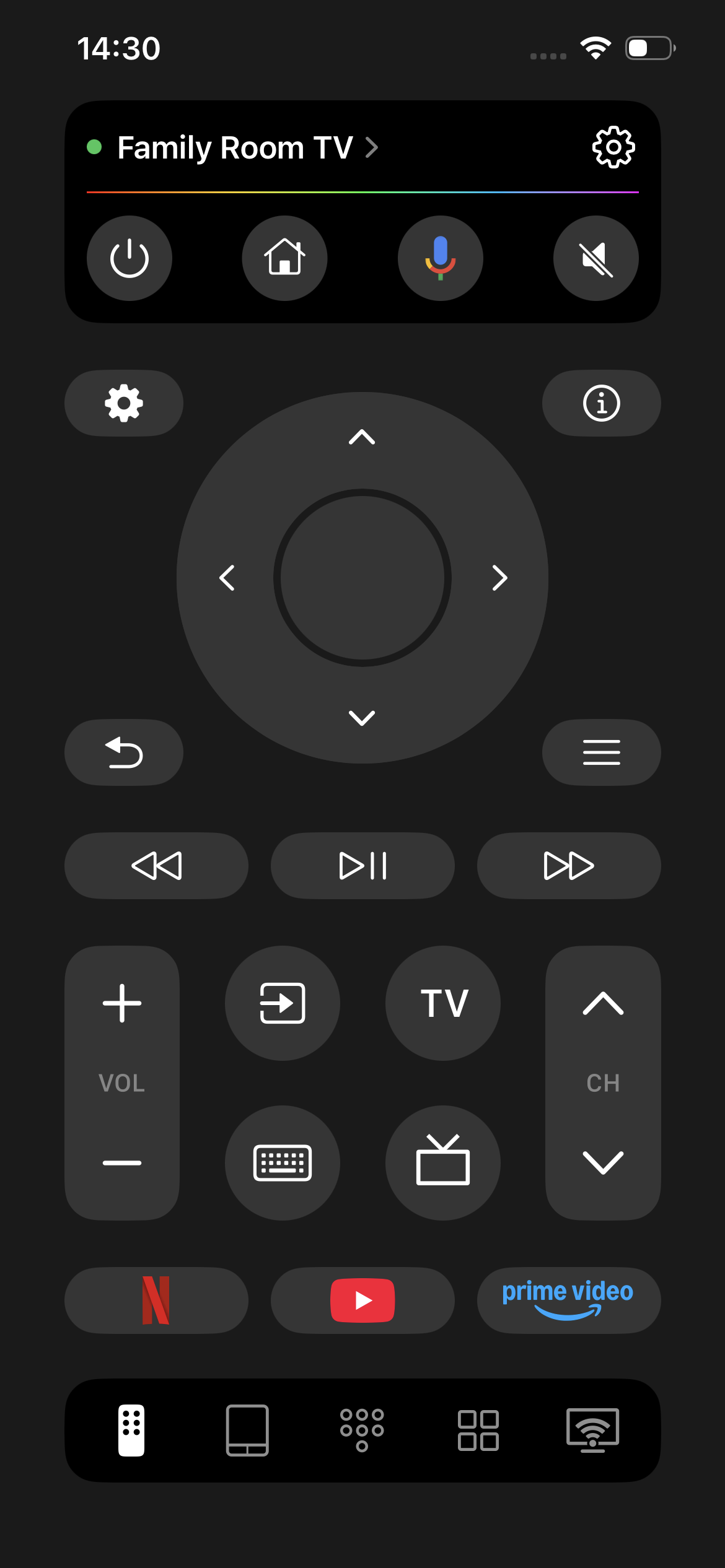
To do this, tap on your connected device's name and select another device.
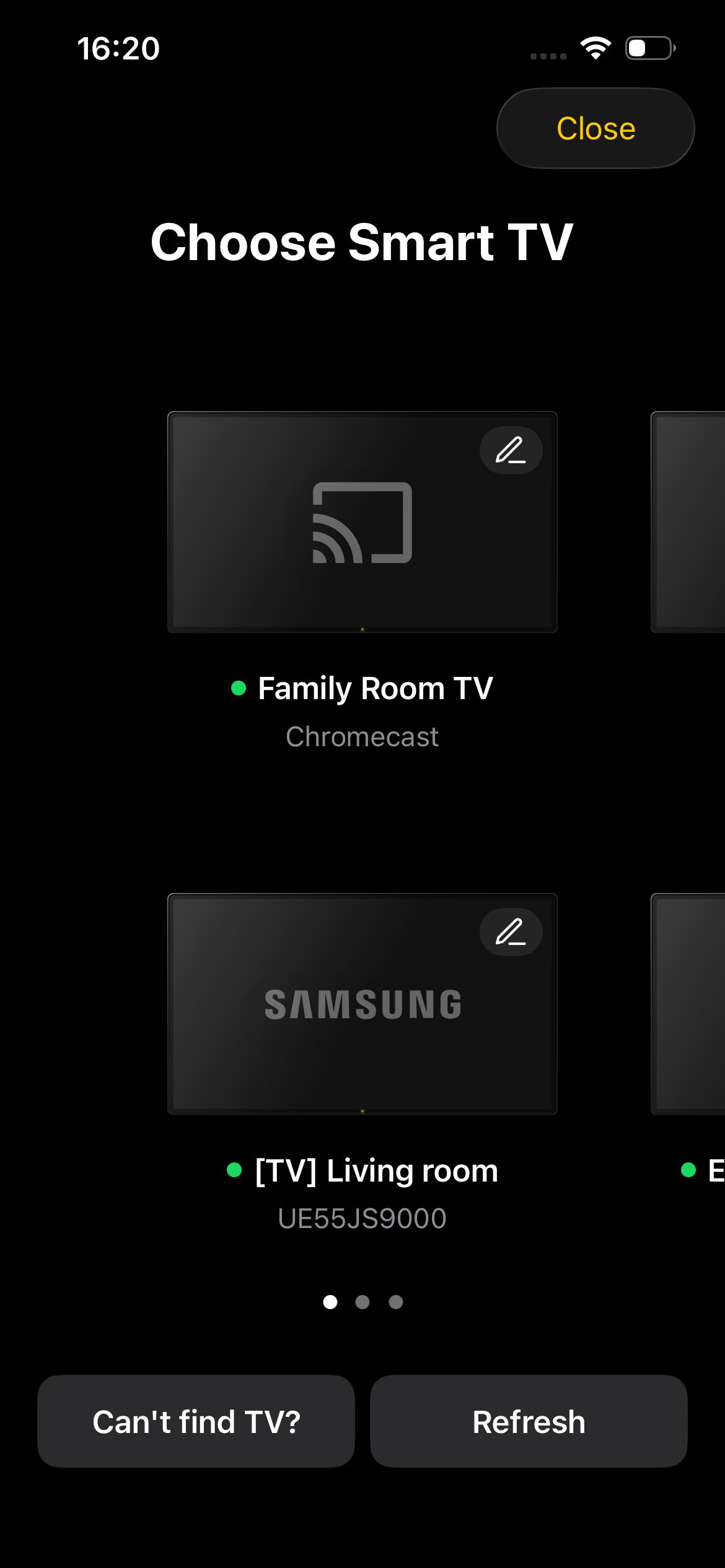
If you don't need to change devices, then tap the “Close” button and continue with the currently selected TV.
After connecting to the device
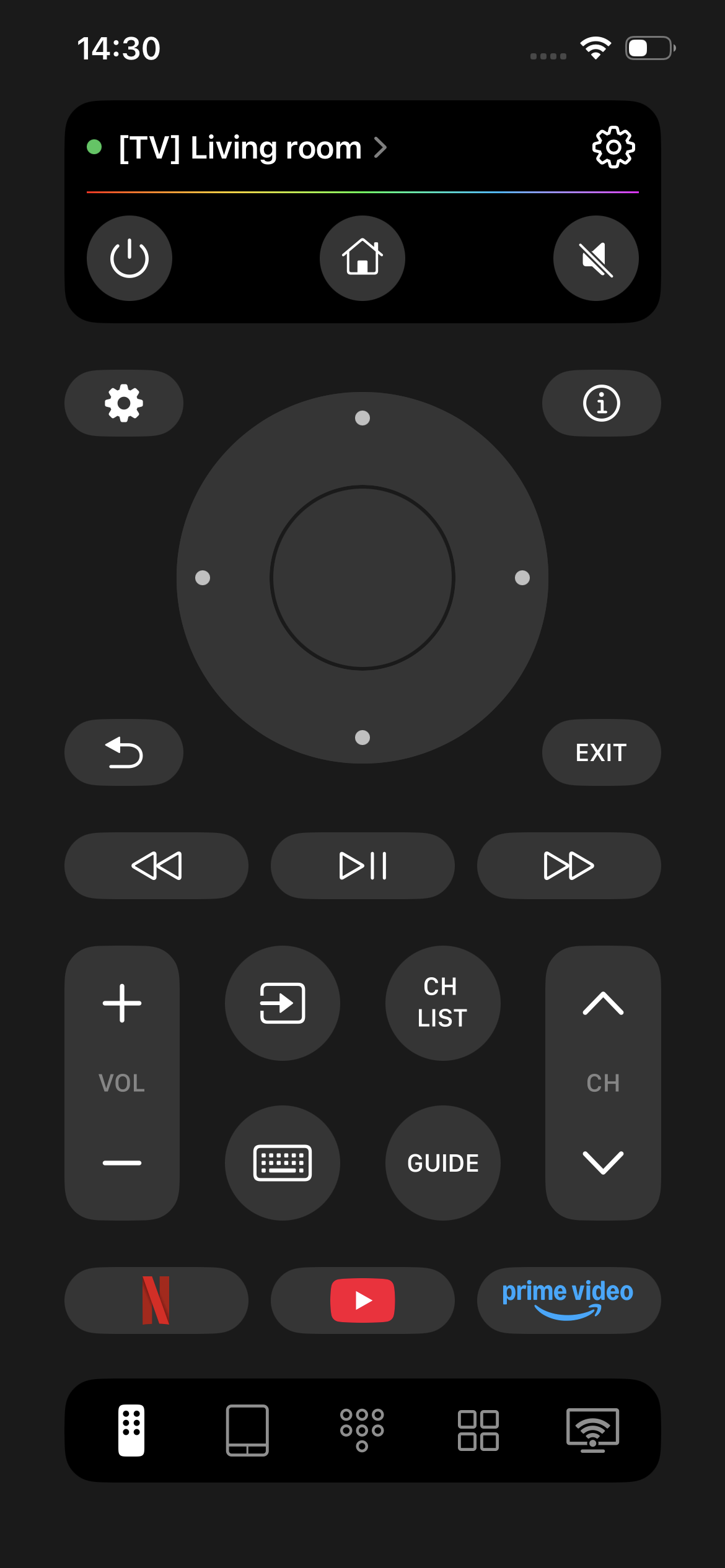
you can start controlling your TV with buttons, touchpad, or launch apps by tapping the corresponding button on the tab bar.