
In this window, you can check the progress of your uploads and downloads, view any files that encountered errors along with the error details, and quickly locate those files in Finder.
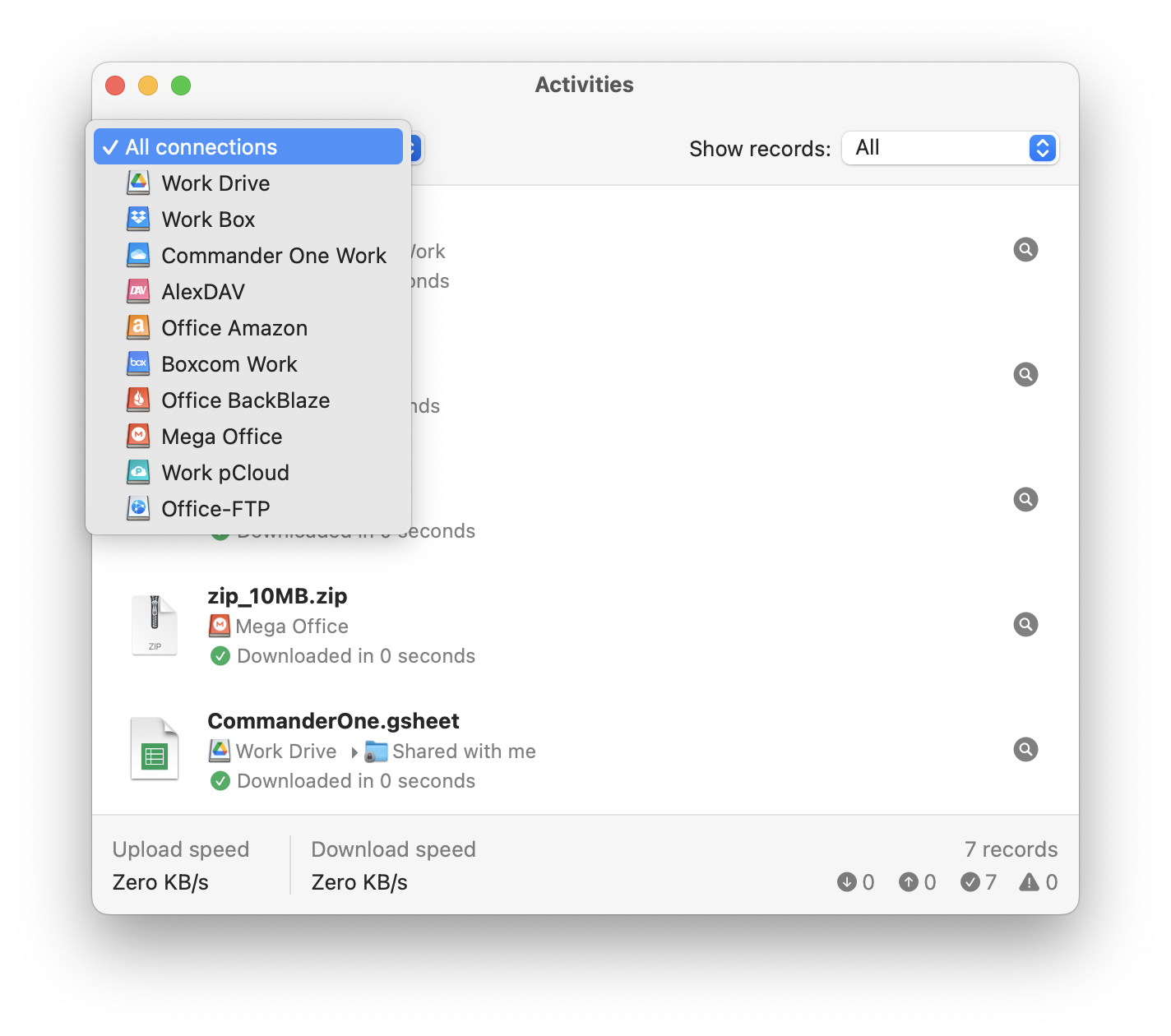
Connection selector - this dropdown menu allows you to filter the activity log by a specific cloud connection. By default, it displays "All connections", showing activity across all mounted cloud accounts.
Show records - allows you to filter the Activity Log by activity status.
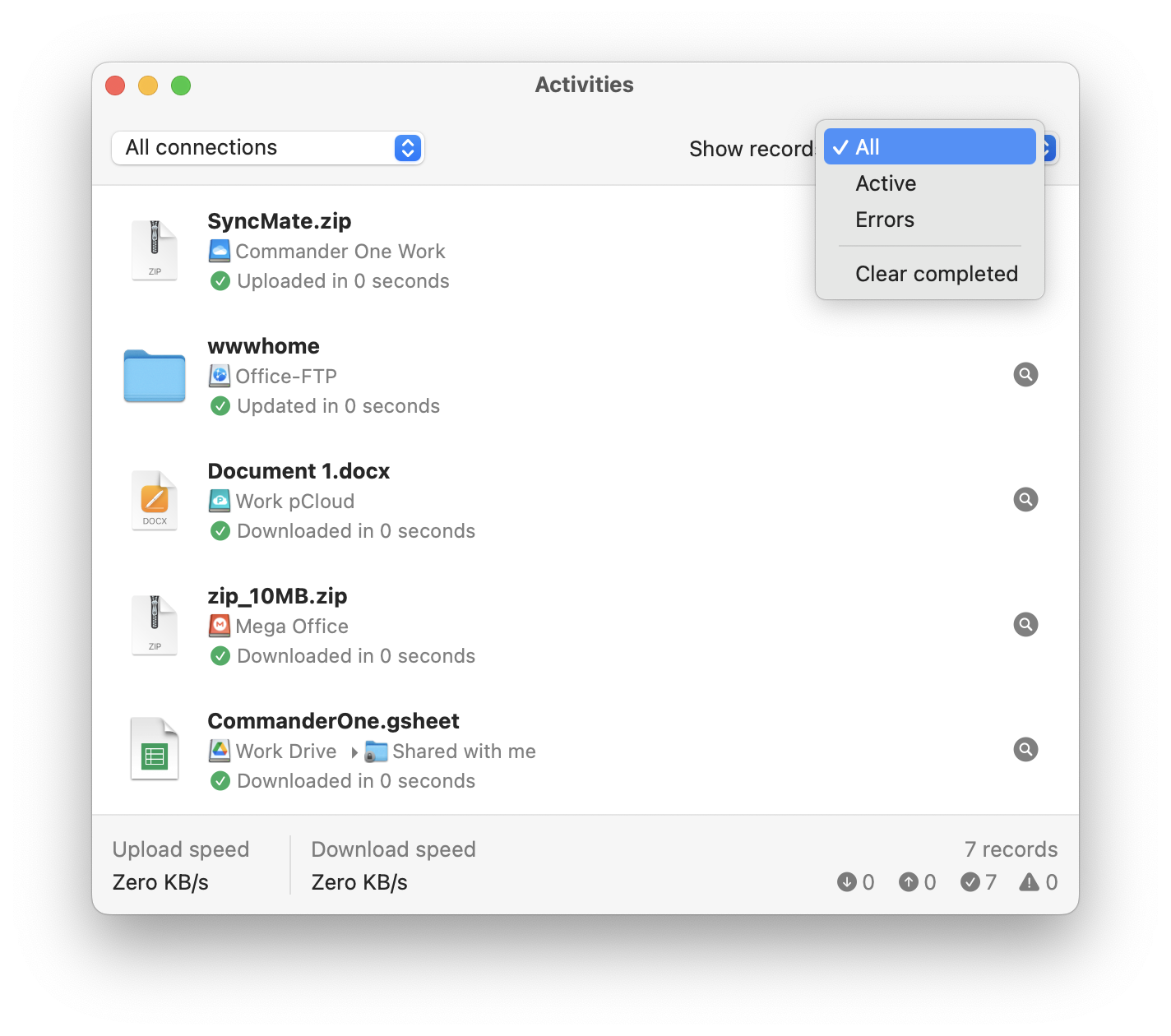
You can choose from the following options:
- All - displays all activity records.
- Active - displays only currently active uploads and downloads.
- Errors - displays only operations that encountered errors.
- Clear completed - removes completed operations from the Activity Log.
Upload and Download speed – these values show the current upload and download speeds.
Status Icons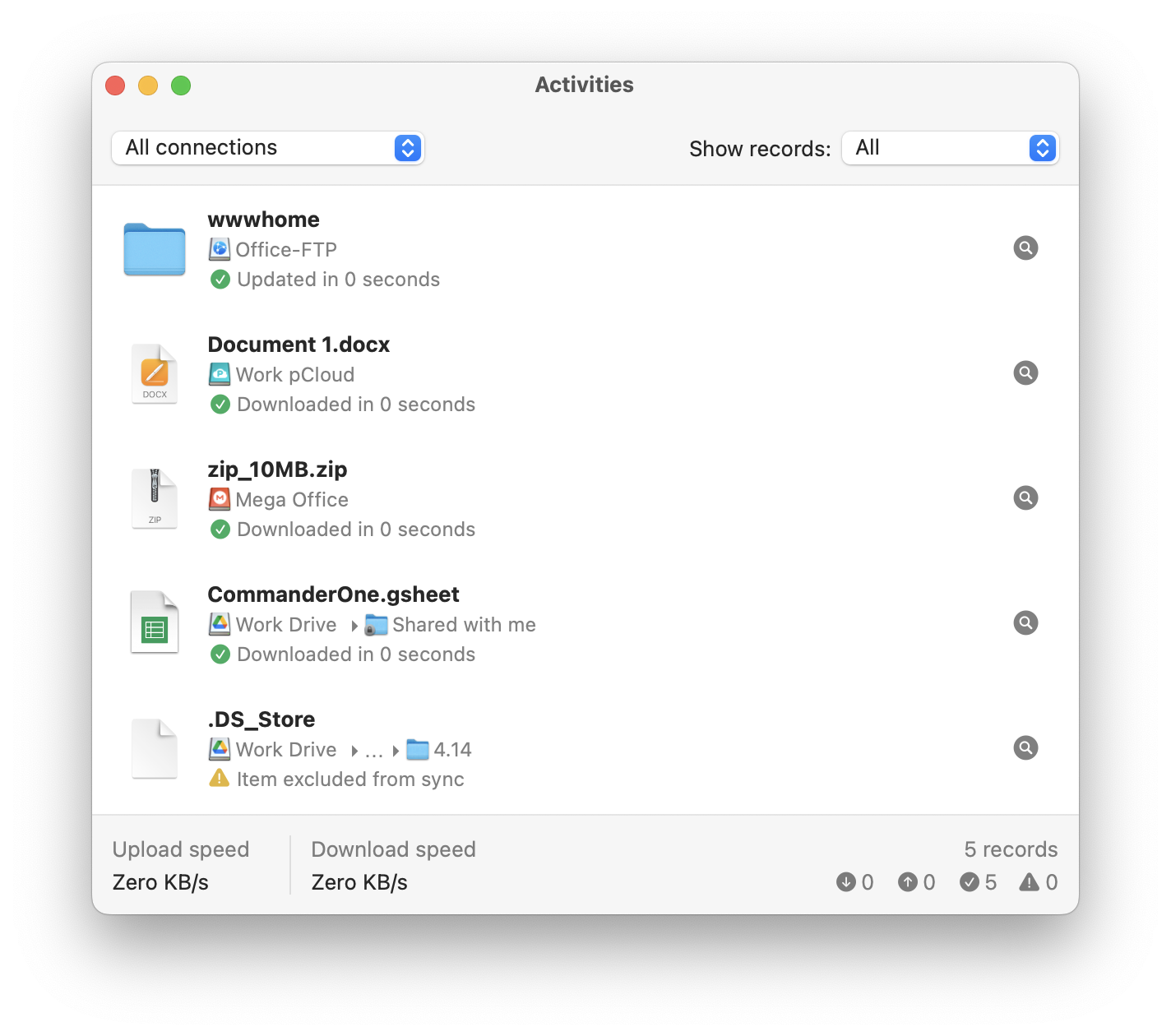
At the bottom of the window, you’ll see a set of icons with counters that summarize the activity log. Each icon represents a different status:
- ⬇️ Currently downloading - the number of files that are being downloaded from your cloud storage to your Mac.
- ⬆️ Currently uploading - the number of files that are being uploaded from your Mac to the cloud.
- ✔️ Completed successfully - the number of actions that were finished without errors, including both downloads and uploads.
- ⚠️ Failed - the number of actions that failed due to errors, like connectivity issues, insufficient permissions, or file conflicts.