
In VSPD, there is a Bundle panel with a bulk of relevant information and several useful features. To get there, click on a port pair.
Here is what you can find in this panel:

“Edit” is for quick access to the port pair settings.
“Delete” is for the selected port pair deletion.
The “Break” button is for the emulation of a physical line break. After you click this button, it gets replaced with the “Restore connection” one, and vice versa.
Ports status: shows if the ports are paired or unpaired.
User session: shows if this pair was created for the current user session only (by default, it’s not).
Baudrate emulation: shows whether the strict baudrate is enabled/disabled.
Pinot: displays which pinout preset is used.
Next, there will be information on each port in the bundle separately.
Real port (a physical COM port existing in your system):

Real port, set as Main:

Virtual port (created by VSPD):

Virtual port, set as Main:

Shared virtual port:

Shared virtual port, set as Main:

The app with access to the port:

Switcher:

Port status: shows if the port is closed or opened by some application.
Opened by: here you’ll see the destination folder and application name which occupies this port, after you’ve opened it with that app (e.g. Windows HyperTerminal).
Port access list: you can see if any masks were applied (click “Show rules” to view the list).
Current settings: shows the port’s baudrate, parity, data bits, stop bits, and flow control.
Sent/Received – shows how many bytes were sent to/received from this port.
Main ports
A real or virtual COM port can be set as the main port in a bundle. The main port controls the signal lines of the ports of a particular type on the other side of the bundle.
The signal lines between the main port on one side of the bundle and the ports on the other side of the bundle are configured as follows:
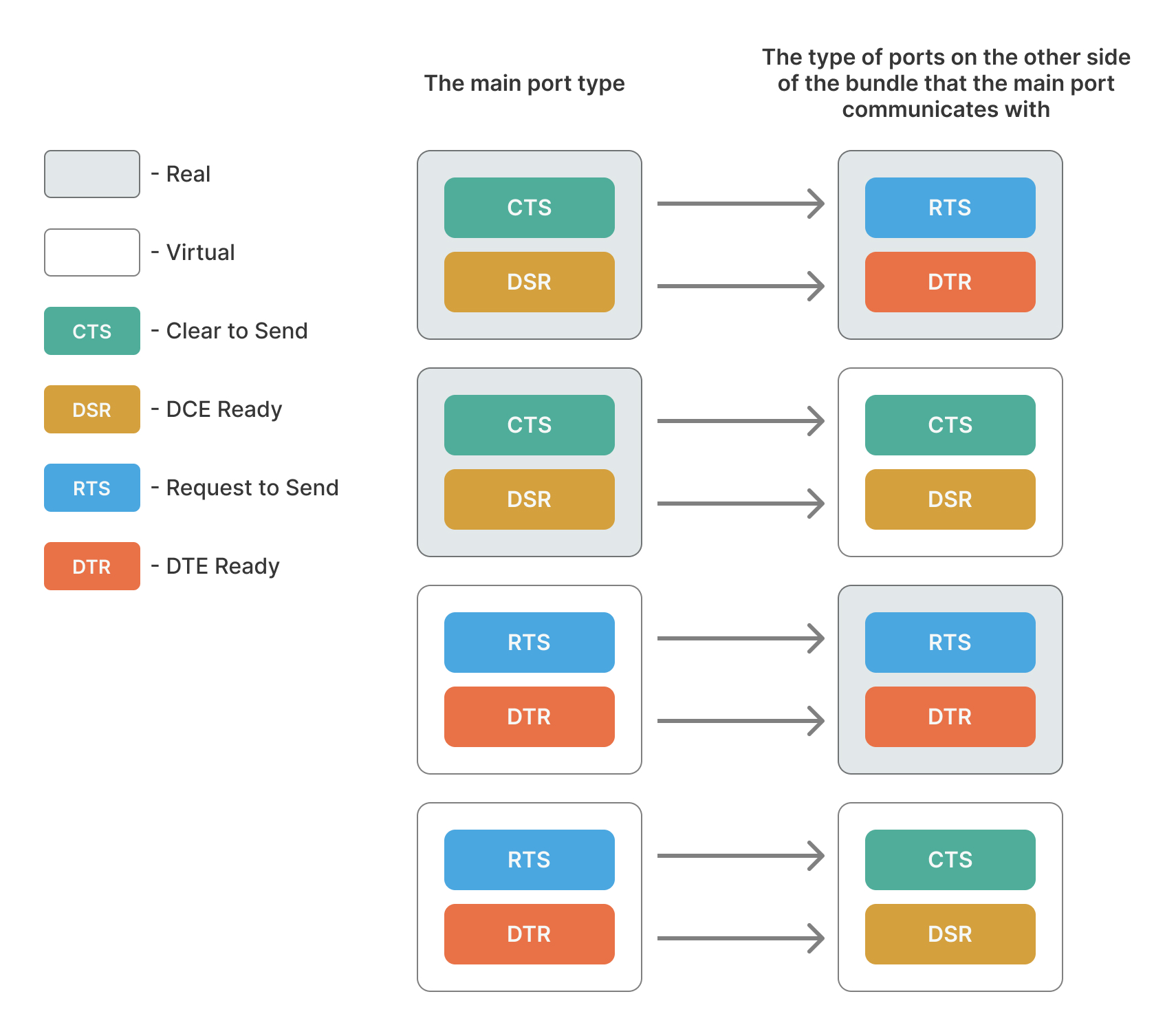
If a virtual port is set as the main port, its parameters will be copied by all the real ports that are configured to have dynamic parameters on the other side of the bundle.